
How to Change Your Business Address on Google Without Getting Suspended: A 10-Step Moving Plan
Short answer: To change your business address on Google, open your Business Profile while signed in to the account that manages it, go to Edit profile > Location, enter the new address and save. To avoid a suspension, wait until you are actually operating at the new location with permanent signage, update your registration and website first, change only the address in that edit, and keep proof of the new location ready in case Google asks you to verify again.

Moving your business is exciting. A bigger shop, a better storefront, a location closer to the customers you actually want. But for a lot of contractors and local service businesses, the move comes with one ugly surprise: a week after updating the address, the Google Business Profile is suspended and the phone goes quiet.
It happens more than you'd think. An address change is one of the edits Google looks at most closely, because it's also the edit spammers use most. The good news is that a move doesn't have to be risky. If you do things in the right order, Google sees a real business making a real move, and your profile, reviews and rankings come with you.
You're also not the only one asking. In Google Ads data we pulled through DataForSEO, US searches for "how to change business address on google" average 880 a month, and "google business profile suspended" averages 320. This guide walks through the exact steps we use when a client relocates, in plain English, for businesses in Canada and the US.
Why does moving put your Google Business Profile at risk?
Changing your address tells Google that the most important fact on your profile, where the business is, has changed. Google's systems treat that as a high-risk edit and often send the profile back through review or ask you to verify again.
Most suspensions after a move come from one of four things:
- The new address can't be confirmed. No signage, no matching documents, or the address is a virtual office, mailbox or coworking desk.
- Too many changes at once. The owner moves the address, rewrites the name, swaps categories and changes the phone number in the same afternoon.
- A duplicate profile. Instead of editing the existing listing, someone creates a new one for the new location.
- Mismatched information. The website, registration and directories still show the old address, so nothing backs up the new one.
Every step below is designed to remove one of those triggers before Google ever sees the change.
The 10 steps to move your Google Business Profile safely
Step 1: Decide how you'll show up at the new location
Before you touch anything, answer one question: will customers come to the new location? If they will (a showroom, a storefront, an office with posted hours), you'll show the address. If you go to your customers, like most plumbers, electricians, roofers and cleaners, you're a service area business and should keep the address hidden and set service areas instead.
Getting this wrong is one of the most common causes of suspension. Google's guidelines for representing your business are clear that a service area business shouldn't display an address customers can't visit. If your new location is your home, it almost certainly should stay hidden.
Step 2: Update your legal and official records first
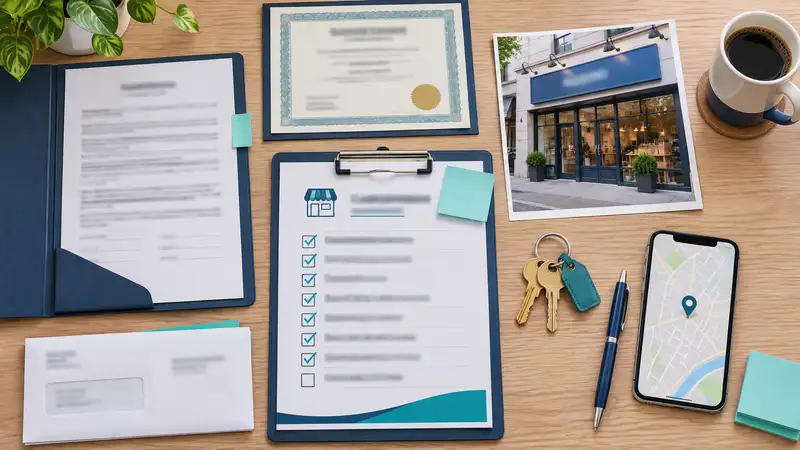
Google may ask you to prove the new address, so the paperwork needs to say the same thing your profile will. Do this before the profile edit, not after.
- In Canada: your provincial business registry, your CRA business number address, and your municipal business licence.
- In the US: your state business registration, your IRS address (Form 8822-B), and your city or county business licence.
- Everywhere: get a utility, internet or phone bill set up in the business name at the new address, and keep a copy of the signed lease.
Step 3: Make sure the new location qualifies
Google only allows a displayed address if the business actually operates there and staffs it during business hours. A PO box, a UPS Store mailbox, a virtual office, or a shared coworking desk with no permanent presence will not pass review, and moving a profile to one is a fast way to get suspended. If you're downsizing to a home office, switch to a hidden-address service area profile rather than finding a "commercial-looking" address.
Step 4: Put up permanent signage before you change the profile
This step gets skipped more than any other, and it matters a lot. Google's verification often happens by video now, and the reviewer wants to see a permanent sign with your business name, the street or unit number, and the tools or equipment of your trade. A paper sign taped to the window doesn't count. For a service area business, a branded vehicle and your gear do the same job.
The simple rule: don't change the address on Google until you're open for business at the new location. Changing it weeks early, while the unit is still empty, invites a verification you can't pass.
Step 5: Update your website
Your website is one of the main places Google checks to confirm your details. Update the address in the footer, the contact page, any embedded map, and your LocalBusiness schema markup if you have it. Keep your business name and phone number exactly as they are. If the phone number stays the same through the move, that continuity helps Google connect the old and new locations as one business.
Step 6: Change the address on Google, and only the address
Now you're ready. According to Google's help page on managing your business address, the process is:
- Sign in to the Google account that owns or manages the profile.
- Search your business name on Google (or open the Google Maps app and tap your profile) and select Edit profile.
- Choose Location, then select Edit next to Business location.
- Enter the new address. If the map pin isn't sitting on your building, adjust it so it does.
- Select Save.
Here's the part that keeps you safe: make no other edits in the same session. Don't change the business name, categories, phone number or website at the same time. If something else genuinely needs updating, wait until the address change has been approved and has sat quietly for a couple of weeks. Google's Edit your Business Profile page notes that edits can be reviewed before they go live, and a burst of edits looks a lot more suspicious than one.
Step 7: Be ready to verify again
Don't panic if Google asks you to re-verify after the move. That's normal for an address change, not a punishment. Most verifications today are done by recording a short, continuous video. Plan to show:
- The street sign or a landmark, then walk to your door so the location is clear.
- Your permanent exterior sign with the business name.
- The inside of the business: equipment, inventory, your workspace.
- Proof you manage the business, such as unlocking the door, opening the till or showing your branded vehicle.
Keep your documents from Step 2 within reach in case Google asks for them as well.
Step 8: Update your listings everywhere else
Once Google approves the change, update the rest of the internet so every source agrees. Consistent name, address and phone (NAP) across directories helps Google trust the new location and helps you rank there faster.
| Where to update | Why it matters |
|---|---|
| Apple Business Connect | Controls your listing in Apple Maps and Siri on iPhones |
| Bing Places for Business | Feeds Bing, Microsoft Copilot and several AI assistants |
| Facebook and Instagram business pages | Customers check these before calling |
| Yelp, BBB and Chamber of Commerce | Strong local citations Google already knows about |
| Industry directories (HomeStars, Angi, Houzz, trade associations) | Highly relevant citations for contractors |
| Your Google Local Services Ads account | LSA addresses and service areas are managed separately |
Step 9: Add fresh photos and tell customers you've moved
New photos are one of the best signals that the move is real. Upload clear pictures of the exterior with your sign, the entrance, the inside and your team at work. Then publish a Google post announcing the new location, with a friendly note about parking or how to find you. It reassures customers and gives Google more evidence that the business is active at the new address.

Step 10: Watch your profile closely for 30 days
For the first month after the move, check your profile every few days. Look for:
- Google-suggested edits that try to change your address or hours back. Review and reject anything wrong.
- A misplaced map pin. Search your business on Google Maps and make sure the pin sits on your building.
- An old listing reappearing at the previous address. If one shows up, report it as moved instead of creating anything new.
- Emails from Google about verification or your profile's status. Answer them quickly.
Expect your rankings to shift for a few weeks, especially if you moved across town. Google ranks map results partly on how close you are to the person searching, so you may gain ground near the new location and lose some near the old one. That's normal, and steady reviews and activity help it settle.
Common moving mistakes that get profiles suspended
| Mistake | Why it's risky | Do this instead |
|---|---|---|
| Creating a new profile for the new location | Creates a duplicate and starts you at zero reviews | Edit the address on your existing profile |
| Marking the old profile "permanently closed" | Tells Google and customers the business shut down | Keep one profile and move it |
| Changing the address before you've moved in | You can't pass verification at an empty unit | Change it once you're open with signage up |
| Editing name, category and phone at the same time | A burst of edits looks like a hijacked or spam listing | Change the address alone; wait two weeks for anything else |
| Moving to a virtual office or mailbox address | Not an eligible location under Google's guidelines | Use a staffed location, or hide the address as a service area business |
| Adding the new city to your business name | Keyword stuffing is a common suspension trigger | Use your real name exactly as it appears on your sign |
How long does it take Google to update a business address?
Sometimes the change goes live within a day, and sometimes it sits in review for a week or more, especially if Google asks you to verify again. Google doesn't promise a fixed timeline. If the edit shows as pending, leave it alone; making more changes while it's under review can reset the process or raise flags.
Will I lose my Google reviews if I move?
No, as long as you edit your existing profile instead of creating a new one. When you change the address on the same profile, your reviews, photos and history move with you. That's the biggest reason never to start over with a fresh listing.
What if my Google Business Profile gets suspended after the move?
First, don't create a new profile, and don't keep editing the suspended one. Find out what Google flagged through the appeals tool, fix the cause, and submit one appeal with documents that match your profile exactly: registration, licence, utility bill and photos of your signage. Our guide to why Google Business Profiles get suspended walks through the 12 most common causes and how the appeal works.
Moving soon, or already suspended? Yeti Digital Services helps contractors and local businesses in Canada and the US move their Google Business Profile the right way, and handles Google Business Profile reinstatement for a flat $299 USD if something has already gone wrong. We can't control Google's decisions, but we can make sure your move and your paperwork are done right the first time.
Talk to us before you move or see our Google Business Profile optimization service.
Last updated November 28, 2026. Search figures are Google Ads monthly averages pulled through DataForSEO on that date. Google's menus, policies and verification steps change, so check the linked Google help pages before you make changes.